
Note 3 Whiteboard Software for PC – Complete Guide
Interactive whiteboard software is becoming very popular for teaching, presentations, and online learning. One of the most useful tools in this category is Note 3 Whiteboard Software.
This software allows users to write, draw, annotate, and explain ideas on a digital board using a computer or interactive display.
In this guide, we will explain everything about Note 3 whiteboard software, including its features, benefits, and how to download and use it on your PC.
What is Note 3 Whiteboard Software?
Note 3 is a digital whiteboard application designed for interactive teaching and collaboration. It works with interactive displays, laptops, and smart boards to help users create presentations and explain ideas visually.
This software provides tools for writing, drawing, and annotating content on a digital board, making it ideal for classrooms, coaching centers, and business presentations.
Key Features of Note 3 Whiteboard Software
Note 3 whiteboard software includes many powerful features that improve teaching and collaboration.
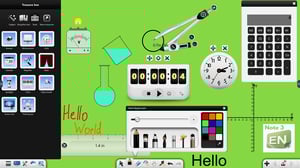
1. Digital Writing and Drawing
Users can write or draw on the whiteboard using a mouse, stylus, or touch screen.
2. Annotation Tools
The software allows annotation on images, documents, and videos.
3. Multi-Touch Support
It supports multi-touch interaction for interactive displays.
4. Shape Recognition
Automatically converts hand-drawn shapes into perfect shapes.
5. Multimedia Support
You can insert images, videos, and documents into the whiteboard.
These features make it a powerful interactive teaching software.
Why Teachers Use Whiteboard Software
Whiteboard software has become an essential tool in modern education.
Teachers use it for:
Online teaching
Interactive presentations
Classroom lessons
Explaining diagrams and charts
Recording lessons
Digital whiteboards help teachers make lessons more engaging and interactive.
How to Download Note 3 Whiteboard Software
Follow these steps to download and install the software.
Step 1
Open the download page.
Step 2
Click on the Download for Windows option.
Step 3
Wait for the file to download.
Step 4
Open the installer file.
Step 5
Follow the installation instructions.
After installation, launch the software and start using the digital whiteboard.
How to Use Note 3 Whiteboard Software
Using the software is very simple.
Step 1 – Open the software
Launch the application from your PC.
Step 2 – Create a new whiteboard
Select a blank canvas to start writing.
Step 3 – Use drawing tools
Choose pen, marker, or shapes.
Step 4 – Add content
Insert images, videos, or documents.
Step 5 – Save your work
Save the whiteboard session for future use.
Best Uses of Whiteboard Software
Whiteboard software can be used in many ways.
Teaching
Teachers can explain topics visually.
Business Meetings
Teams can brainstorm ideas together.
Online Classes
Teachers can conduct live lessons.
Content Creation
YouTubers can create educational videos.
Alternative Whiteboard Software
If you want alternatives, these tools are also popular.
Microsoft Whiteboard
A free digital whiteboard tool that supports real-time collaboration across devices.
Microsoft OneNote
A powerful note-taking application that allows drawing, writing, and sharing notes across devices.
GitMind
A collaborative whiteboard and mind-mapping tool used for brainstorming and visual planning.
If you want to download the software, check our full guide on Note 3 Whiteboard Free Software Download.
Advantages of Digital Whiteboard Software
Using whiteboard software provides many advantages.
✔ Better visual explanation
✔ Easy collaboration
✔ Interactive teaching
✔ Digital note saving
✔ Professional presentations
Frequently Asked Questions (FAQ)
1. What is Note 3 Whiteboard Software?
Note 3 Whiteboard Software is an interactive digital whiteboard tool used for writing, drawing, and presenting ideas on a computer. It is commonly used in classrooms, online teaching, and business presentations.
2. Is Note 3 Whiteboard Software free to download?
Yes, many versions of Note 3 whiteboard software are available for free download. Some advanced versions may include premium features for professional use.
3. Can I use Note 3 Whiteboard Software on Windows PC?
Yes, the software is mainly designed for Windows PC and works with laptops, desktops, and interactive displays.
4. What are the main features of Note 3 Whiteboard Software?
Key features include:
Digital writing and drawing
Annotation tools
Multimedia support
Interactive presentation tools
Easy saving and exporting options
5. Who can use Note 3 Whiteboard Software?
This software is useful for:
Teachers and educators
Students
Business professionals
Online trainers and presenters
6. What are the alternatives to Note 3 Whiteboard Software?
Some popular alternatives include:
Microsoft Whiteboard
OpenBoard
Jamboard
Explain Everything Whiteboard
These tools offer similar features for digital collaboration and presentations.
Final Thoughts
Note 3 whiteboard software is a powerful tool for teachers, trainers, and professionals. It allows users to create interactive presentations and explain ideas visually.
With features like drawing tools, annotations, and multimedia support, this software transforms a simple PC into a digital whiteboard system.
If you want an effective solution for teaching or presentations, Note 3 whiteboard software is definitely worth trying.