How to Reset Epson L1300 Printer “Service Required” Error (Free Resetter Tool)
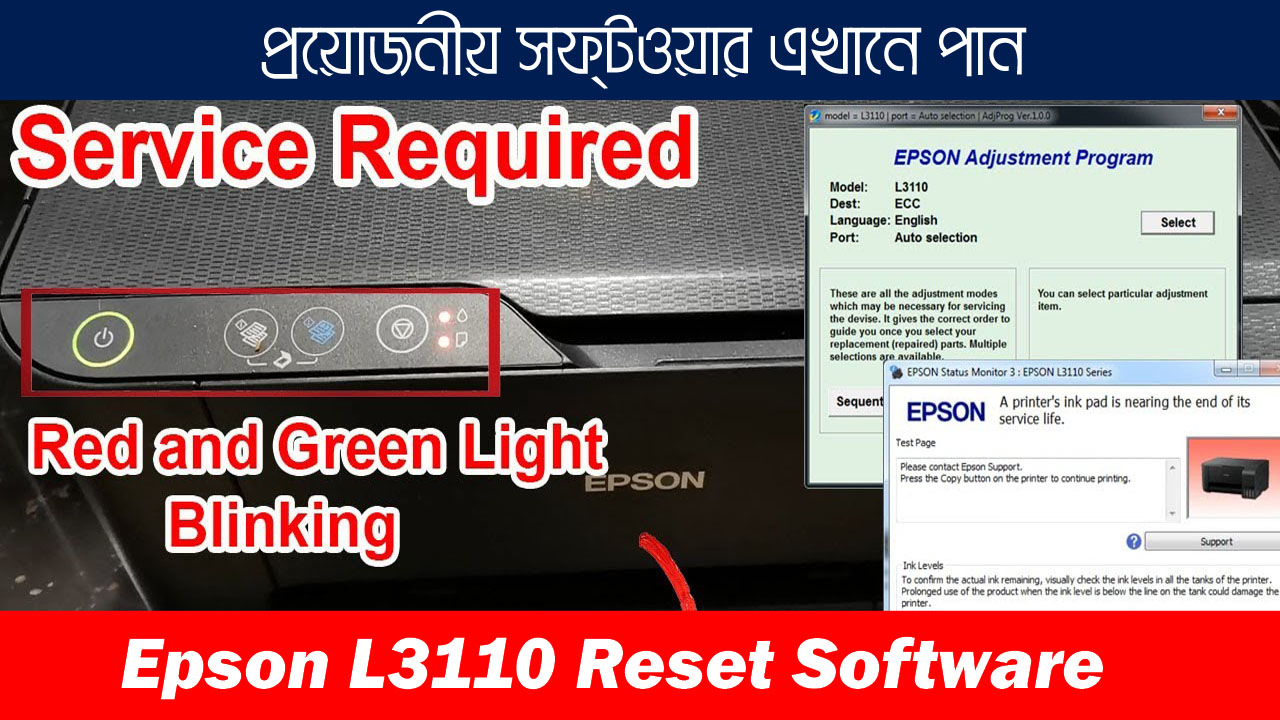
If your Epson L1300 printer has suddenly stopped printing, and you are seeing alternating flashing red lights on the paper and ink buttons, you are not alone.
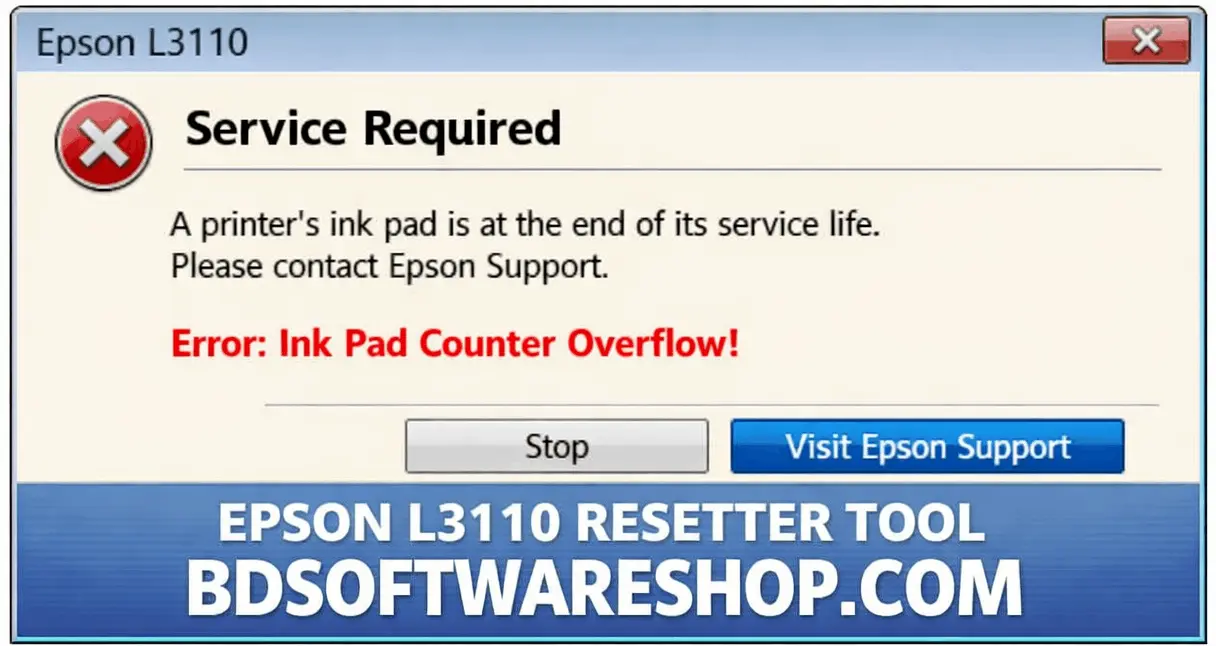
Along with the blinking lights, you will usually see an error message on your computer screen saying: “Service Required: A printer’s ink pad is at the end of its service life. Please contact Epson Support.”
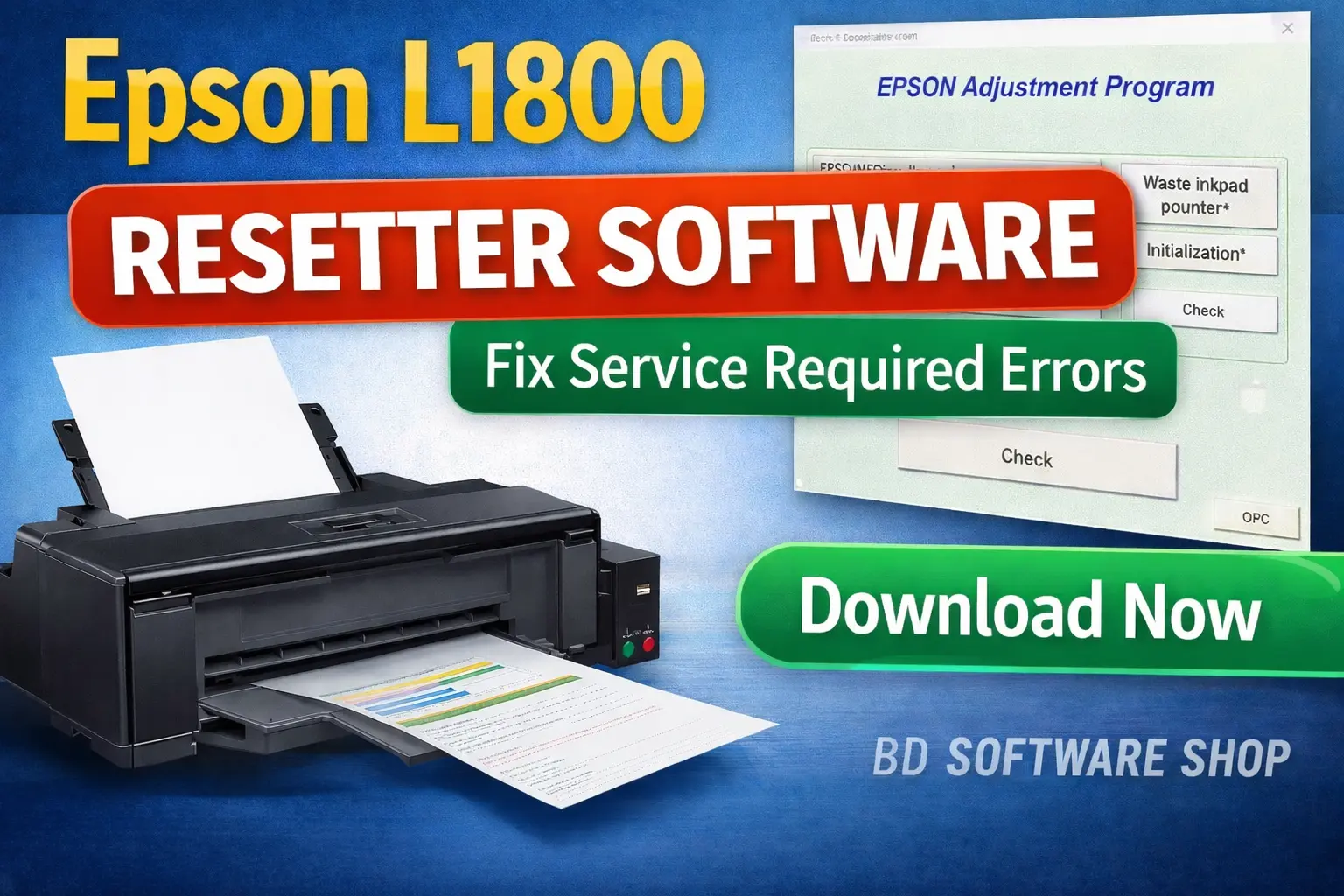
Instead of spending money at a service center, you can fix this issue yourself in less than 5 minutes. All you need is the Epson L1300 Resetter (Adjustment Program). Below is the direct download link, step-by-step guide, and our dedicated remote technical support information.
Why Does the “Service Required” Error Happen?
Inside your Epson L1300 printer, there are physical sponge pads called Waste Ink Pads. They absorb the excess ink used during head cleaning and printing.
The printer has an internal digital counter (Waste Ink Pad Counter) that estimates when these pads are full. Once this counter reaches 100%, the printer locks itself for safety to prevent ink leakage. Using the Adjustment Program, we can reset this digital counter back to 0%, making your printer work like new again.
Epson L1300 Adjustment Program Specifications
| Feature | Details |
| Supported Printer | Epson L1300 (InkTank) |
| Tool Name | Epson Adjustment Program (Resetter) |
| File Size | Under 5 MB |
| Status | 100% Working & Verified (Tested Before Upload) |
| Supported OS | Windows 11, 10, 8, 7, XP (32-bit & 64-bit) |
How to Use Epson L1300 Resetter (Step-by-Step Guide)
Before you begin, make sure your printer is turned on and connected to your computer via a USB cable (Wi-Fi/Network connection will not work for resetting).
Step 1: Temporarily Disable Your Antivirus
⚠️ Important Note: Antivirus programs and Windows Defender often flag printer adjustment tools as false positives because they modify printer hardware firmware. Disable your antivirus for 10 minutes before extracting the file.
Step 2: Run the Adjustment Program
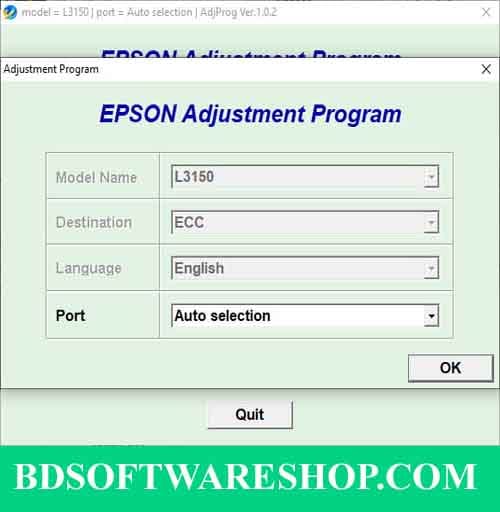
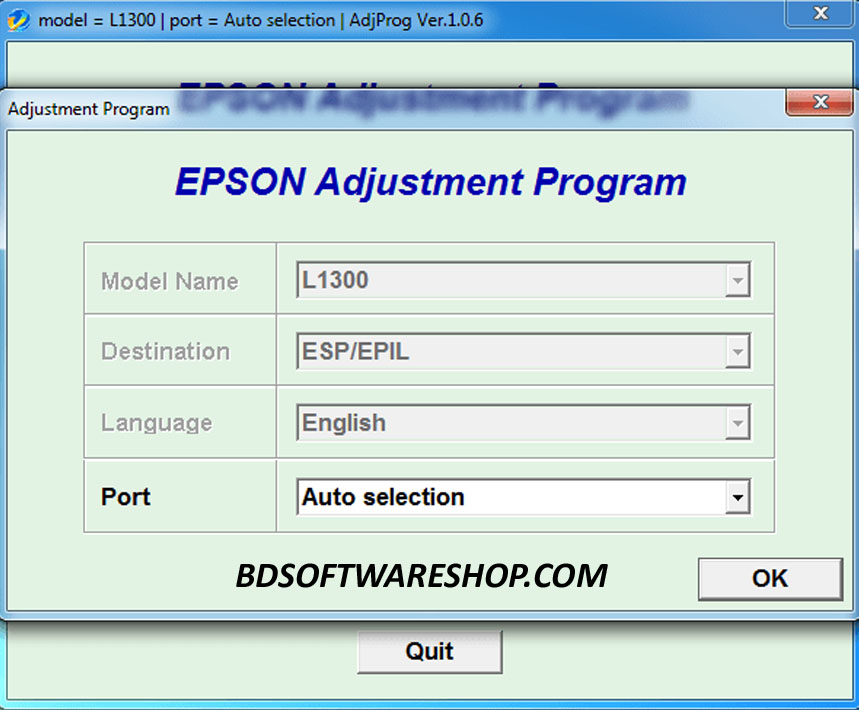
Open the extracted folder and double-click on the
AdjProg.exefile.Click on the “Select” button at the top, choose L1300 under the Model Name, and click OK.
Click on the “Particular Adjustment Mode” button.
Step 3: Reset the Waste Ink Pad Counter
Select “Waste ink pad counter” from the list and click OK.
Check the box next to “Main Pad Counter”.
Click the “Check” button to see your current ink percentage.
Keep the boxes checked, and this time click the “Initialization” button.
Click OK when it asks for confirmation.
Step 4: Restart Your Printer
The tool will display a message: “Please turn off the printer.”
Turn off your printer using its physical power button, click OK on the screen, and turn the printer back on.
সফটওয়্যারটি 100% কাজ করবে কারণ এটি টেস্ট করে তারপর আপলোড করা হয়েছে

🔒 File Password Information (ফাইল পাসওয়ার্ড):
নিরাপত্তার স্বার্থে এই ফাইলটি পাসওয়ার্ড দিয়ে সুরক্ষিত অবস্থায় রয়েছে। পাসওয়ার্ডটির জন্য অবশ্যই আপনাকে প্রথমে নিচের পেমেন্ট গেটওয়ে ব্যবহার করে ছোট একটি পেমেন্ট করতে হবে, তারপর আমাদেরকে কল দিয়ে পাসওয়ার্ডটি সংগ্রহ করতে হবে।
#How to Pay For This File:
- 🔹 Payment Gateway: bKash (বিকাশ) / Nagad (নগদ)
- 🔹 Account Number: 01861624848
- 🔹 Price: 150BDT
- 🔹 Payment Option: Send Money / Cash In
📞 পেমেন্ট করার পর পাসওয়ার্ডের জন্য কল দিন: 01861624848
🛠️ Need Help? Contact Our Remote Installation Support
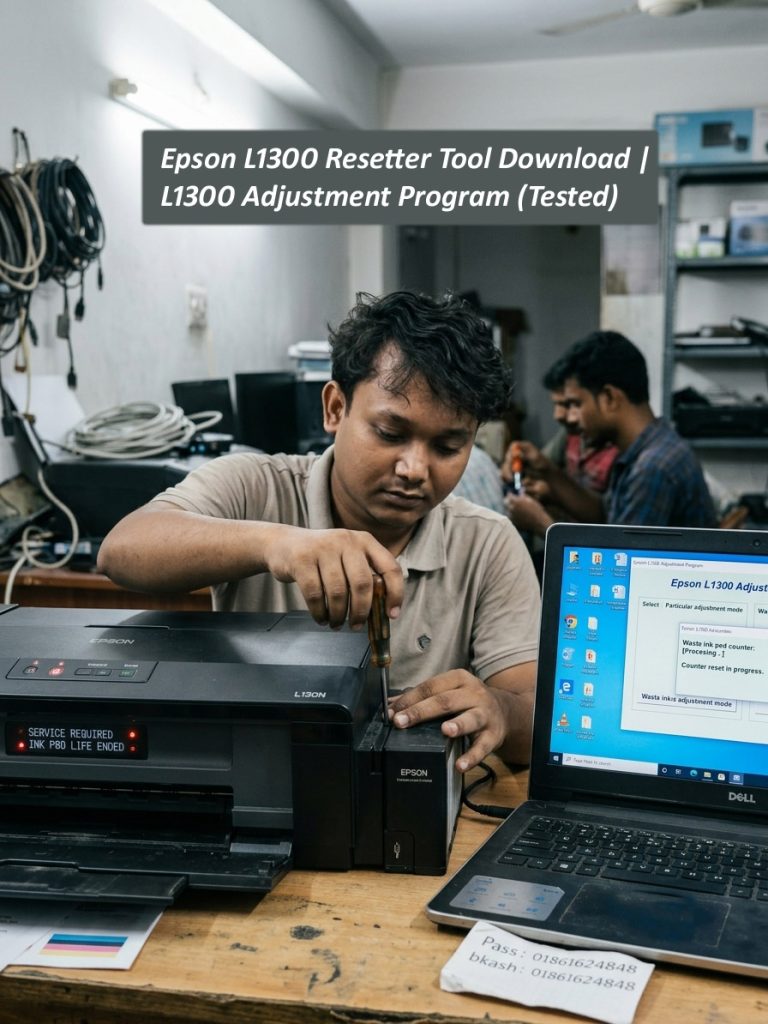
ইনস্টল সিস্টেম বুঝতে না পারলে বা কোনো টেকনিক্যাল জটিলতা দেখা দিলে সরাসরি আমাদের সাথে যোগাযোগ করুন। আপনি চাইলে ঘরে বসেই রিমোট কন্ট্রোল সফটওয়্যার (যেমন- Anydesk বা UltraViewer) এর মাধ্যমে আপনার কম্পিউটারে আমাদের অভিজ্ঞ টিম দ্বারা সফটওয়্যারটি ইনস্টল করিয়ে নিতে পারবেন।
📞 কল করুন: 01861624848
💬 হোয়াটসঅ্যাপ (WhatsApp) করুন: Message on WhatsApp
⚠️ দ্রষ্টব্য: আমাদের মাধ্যমে রিমোট কন্ট্রোলে কাজ করিয়ে নেওয়ার ক্ষেত্রে নির্দিষ্ট সার্ভিস চার্জ প্রযোজ্য।
Frequently Asked Questions (FAQs)
1. Is this Epson L1300 Resetter free to download?
Yes, the file is available for free download. However, the compressed file is password protected to maintain secure access and server maintenance.
2. Why does Windows Defender block the adjustment program?
Resetters interact directly with the printer’s EEPROM chip via USB. Windows Security often identifies hardware-level tools as a false positive. It is 100% safe to turn off your antivirus for a few minutes while running the program.
3. Do I need to physically clean the ink pads?
Resetting the counter fixes the software error so you can print instantly. However, if your printer is very old, we highly recommend opening the back panel and cleaning or replacing the physical sponges to prevent future ink leakage.