
Windows 11 ISO Download and Installation Guide
Ready to elevate your computing experience with the latest from Microsoft? Windows 11 brings a fresh look and powerful features to your PC. Whether you’re upgrading from an older version or performing a clean installation, downloading the Windows 11 ISO file is your first step. Here’s everything you need to know to get started!
Microsoft officially announced the free download of Windows 11 on October 5, 2021. You can now download the original Windows 11 ISO files (DVD copies) with a single click from our high-speed server.
Windows 10 ISO Files for All Editions Download
Windows 11 ISO Download Free Software
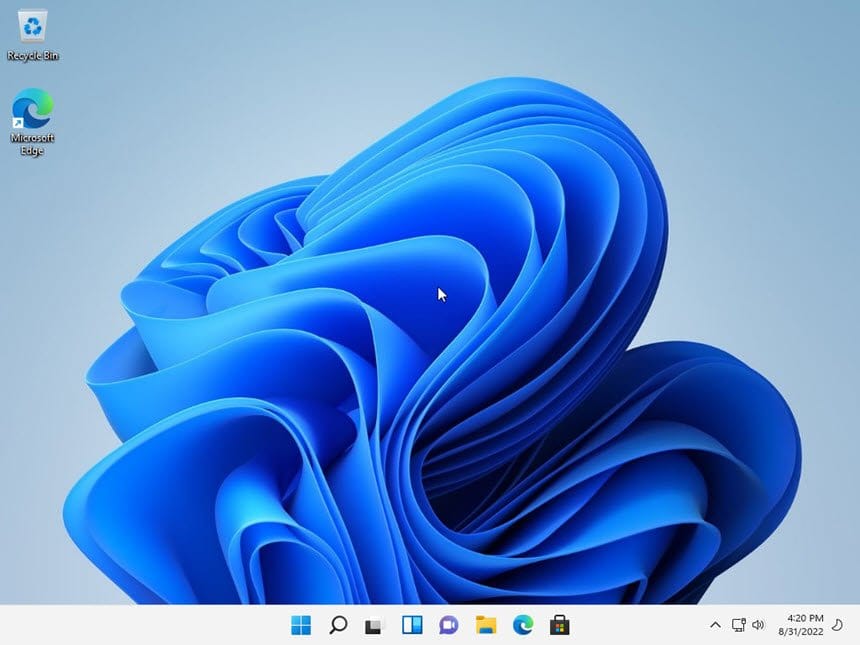
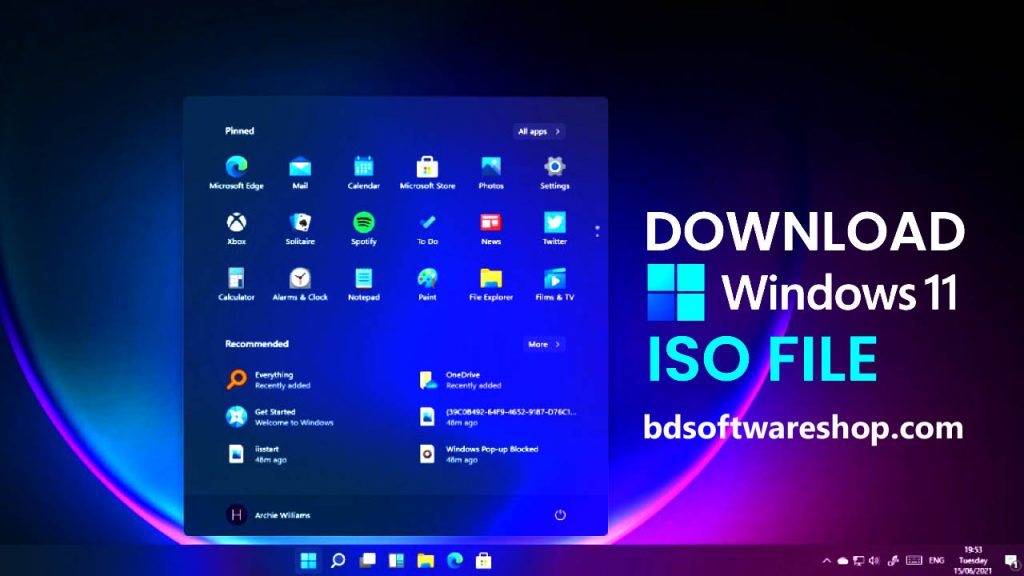
Windows 11 introduces a host of new features, including a unique user interface, an enhanced Windows & Apps Store, improved performance, and better multitasking options for users.
Windows 11 ISO
Microsoft offers different options for installing Windows 11, such as using Windows 11 Installation Assistant, creating Windows 11 Installation Media, and downloading Windows 11 Disk Image (ISO).
🌟 What Makes Windows 11 Shine?
Windows 11 isn’t just an upgrade; it’s a transformation. Here’s a snapshot of what’s new:
- ✨ Modern Interface: A sleek, centered Start Menu and taskbar for a refined look.
- 🖥️ Enhanced Multitasking: Manage multiple tasks effortlessly with Virtual Desktops and Snap Layouts.
- 🎮 Gaming Revolution: Experience faster load times with DirectStorage and enhanced graphics.
- 📈 Productivity Boost: Widgets for instant access to news, weather, and more.
🚀 How to Download the Windows 11 ISO File
Ready to dive in? Follow these simple steps to get your Windows 11 ISO file:
- 🔗 Visit the Microsoft Website: Head over to the official download page.
- 📝 Select Your ISO: Scroll to “Download Windows 11 Disk Image (ISO)” and choose “Windows 11” from the dropdown.
- 🌍 Choose Language & Version:
- Pick your preferred language and edition.
- Hit the “Download” button to start.
- 💻 Check System Requirements: Ensure your PC meets the requirements: a compatible 64-bit processor, 4 GB RAM, and 64 GB storage.
- 📥 Download the ISO File: Save the ISO file to your PC and get ready for the next step!

📀 Creating Installation Media
Now that you’ve got the ISO file, let’s turn it into installation media:
- 💾 USB Flash Drive:
- Plug in a USB drive (8 GB or more).
- Download and open Rufus.
- Select your USB drive, choose the ISO file, and click “Start” to create your bootable USB.
- 💿 DVD:
- Insert a blank DVD.
- Use ImgBurn to burn the ISO to the DVD.
- Follow the tool’s prompts to complete the process.
🛠️ Installing Windows 11 ISO File
Time to install! Here’s how to get Windows 11 up and running:
- 🔄 Boot from Media:
- Insert the USB drive or DVD.
- Restart your PC and enter BIOS/UEFI (press F2, F12, Del, or Esc).
- Set it to boot from your installation media.
- 🖥️ Start the Installation:
- Follow the on-screen instructions.
- Choose your language, time, and keyboard settings.
- 🛠️ Complete the Setup:
- Click “Install Now” and follow prompts.
- Enter your product key if asked, and select the installation type (Upgrade or Custom).
- ✨ Finalize Installation:
- Complete the setup wizard.
- Sign in with your Microsoft account or set up a local account.
📝 Tips & Troubleshooting Windows 11 ISO
- 🔍 Verify Compatibility: Ensure your PC meets the Windows 11 requirements.
- 🗂️ Backup Data: Save your important files before installation.
- 🔄 Check for Updates: After installing, update your system for the latest features and security patches.
🎉 Enjoy Windows 11!
With the installation complete, you’re all set to explore Windows 11’s exciting new features. From a redesigned interface to cutting-edge performance, your computing experience is about to get a major upgrade. Enjoy the best of Microsoft’s latest OS!